How to Create a Static Homepage in WordPress
By default, when you build a website with WordPress, your homepage is set to display a list of your latest posts.
Here are the steps to change this setting so that a customized static page is displayed as your homepage.
- Open “Pages” ➔ “Add Page”
- Enter “Homepage” as the title, set the slug (or permalink) to “/home”, and save it as a draft.
How to Setup an Articles List Page in WordPress
- Open “Pages” “Add Page”
- Enter “Articles” as the title.
- Change the slug (or permalink) to “/articles” and save it as a draft.
*At this point, the page will not be visible anywhere because it has not been linked within your site yet.
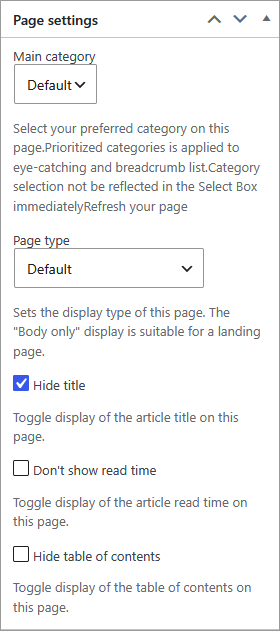
How to Hide the Page Title on Your WordPress Homepage
- Step In the sidebar of the page editor, go to “Page Settings” and check the box for “Hide Title”.
How to Change Your WordPress Reading Settings
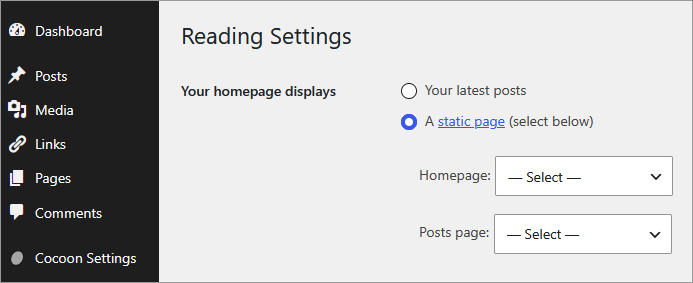
Once your new Homepage and Articles list page are published, change the display settings with the following steps.
- Open “Settings” ➔ “Reading”
- Under “Your homepage displays”, select “A static page”, assign the pages you just created to “Homepage” and “Posts page” respectively, and click Save Changes.
How to Configure Navigation Links for Your Articles Page
Your newly created articles list page will not be linked from anywhere on your site by default.
If you have a header navigation (global navigation menu) active, let’s add a link to it.
- Open “Appearance” ➔ “Menus” ➔ “Header Navigation”
- Add the “Articles” page to the menu and save it.
- Complete Confirm that the link to “Articles” is properly displayed in your header navigation.
How to Maximize Cocoon Front Page Features
Leaving your homepage as just a simple list of latest posts is a missed opportunity.
In the past, this site used various plugins to showcase different types of content on the homepage. However, in this modern era, you can simply draft your layout ideas, share your preferences with an AI, and have it write the code in an instant—there is no reason not to take advantage of this!
Additionally, Cocoon allows you to easily choose your preferred layout style from “Cocoon Settings” ➔ “Index” tab. You can reorder the display of categories, customize the number of posts shown per category, and fine-tune various details. Be sure to give it a try and create your ideal front page!

![[2026 Latest] 5 Must-Have WordPress Plugins for Your Site!](https://martto.net/en/wp-content/uploads/2026/07/plugin_en.png "[2026 Latest] 5 Must-Have WordPress Plugins for Your Site!")
Comments