![[No Plugin Required] How to Safely Protect and Manage Your WordPress Login ID](https://martto.net/en/wp-content/uploads/2026/06/WordPress_id_en.png "[No Plugin Required] How to Safely Protect and Manage Your WordPress Login ID")
Is Your WordPress “Login ID” Not Actually Hidden from the Screen!?
As a blog security measure, do you think, “I’m safe because I set it not to display the author’s (creator’s) name on the screen!”?🤔
Actually, there is a possibility that it is insufficient as a security measure with just that!💥
Due to WordPress specifications, no matter how much you hide the appearance on the screen, there is a vulnerability where the login ID (username) of the “Administrator,” who has the highest authority, can be easily guessed by specific access being made from the outside.
Specifically, there are cases where the real login ID is displayed in the address bar simply by searching with the string “?author=1” appended to the end of the URL, or by accessing the data window dedicated to the system (REST API).💦
To prevent a situation like teaching your login ID to hackers, a solid measure is required. Let’s understand the standard mechanism and create a safe state!✨
Cautions Hidden in “Bulk Edit” and “Unverified Plugins”
“Then, wouldn’t it be fine to create a new ‘Editor’ account dedicated to writing and change the authors of all past articles at once using the bulk edit function?” you might think, right?💡
Actually, there is an unexpected pitfall here as well, so please be careful!
If you try to change the author of past articles all at once using the standard WordPress function, despite not touching even a single character of the content inside the text, the moment you press the “Update” button for bulk editing, the system recognizes that “the article has been newly updated.”
As a result, the “Update Date” of all past articles will be forcibly overwritten all at once with today’s date! You definitely want to avoid the footsteps of your blog so far (the update date data) being rewritten without any meaning, right?
Also, “plugins for protecting IDs” exist, but there is a risk that development might end in the future, and furthermore, installing too many of them could cause screen transitions on smartphones to become heavy. For those who want to eliminate risks as much as possible and keep the site smart, relying too much on plugins is also something to think about.😔
The “Reliable Redirect Method” Just by Adding 4 Lines to functions.php
You don’t want to mess up the important “Update Date” of past articles, and you don’t want to increase plugins any more to make the site heavy!❌
We will introduce the highest clean alternative measure that beautifully resolves such worries and firmly protects the administrator’s login ID from the back side!✨
The method is very simple. Log in with the “Administrator” who has the highest authority, and just copy and save the following code as it is at the very end of functions.php of the theme (child theme) you are using!👇
/**
 * Login ID leakage prevention: Forcibly redirect access to ?author= to the top page
 */
function my_block_author_scans() {
    if ( is_author() || ( isset( $_GET['author'] ) && is_numeric( $_GET['author'] ) ) ) {
        wp_safe_redirect( home_url(), 301 );
        exit;
    }
}
add_action( 'template_redirect', 'my_block_author_scans' );1Select “Theme Functions”
2Paste the copied code here
3Click the “Update File” button
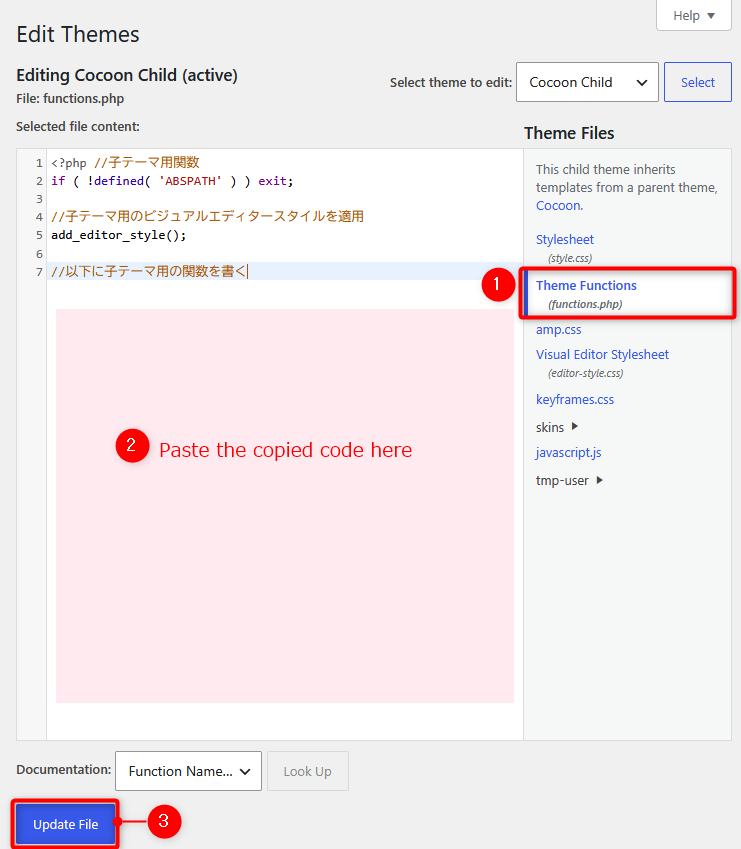
The steps are completed with the above👍
If you set up this code in advance, the moment a hacker or an automatic robot aims at the back door (?author=1) to identify the login ID, the sensor of this code works and blocks the access.
Before the real ID leaks, it will instantly perform a “301 Redirect (Permanent Transfer)” to the top page.
Summary: To an Invincible Fortress That Doesn’t Even Require the Trouble of Switching Logins
If you paste these 4 lines of code into the theme, even if there are a large number of articles or fixed pages written with the “Administrator” as it was in the past, the route itself for hackers to reach that data completely disappears.✨
In other words, without changing the date of past articles at all, a safe environment is prepared in an instant!
To make it even more pleasing, since this guard moves automatically on the back side, regarding future articles or fixed pages to be newly written from now on, you do not need the trouble of logging back in to another account purposely at all.
Even if you continue writing with the familiar administrator account as usual, the security of the site always maintains high safety!
With this smart and easy correct answer route, let’s increase the defense power of your important blog to the maximum!✨

Comments