How to Create a Cocoon Box Menu
Does the category list in your blog’s sidebar look a bit plain with only text? The free theme “Cocoon” comes standard with a wonderful feature called the Box Menu, which allows you to beautifully organize items in a tiled format with icons.
Since it becomes visually easy to understand, you can guide your readers to their desired categories without letting them get lost. In this article, I will explain in detail the basic setup procedures that even beginners can follow without confusion, along with a bonus section on color customization to express your unique style!
Step 1: Creating a New Menu and Registering Items
First, let’s assemble the content you want to display as a Box Menu.
- Open “Appearance” ➔ “Menus”: Access it from the WordPress management screen.
-
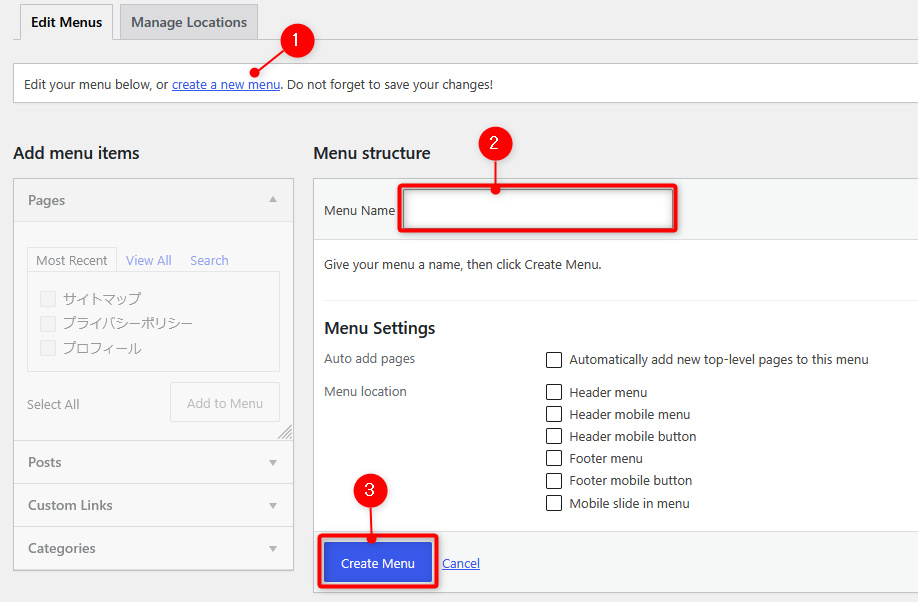
Create a New Menu: 1 Click “Create a new menu.” 2 Enter a clear name, such as “Menu for Categories.” 3 Click “Create Menu.”
-
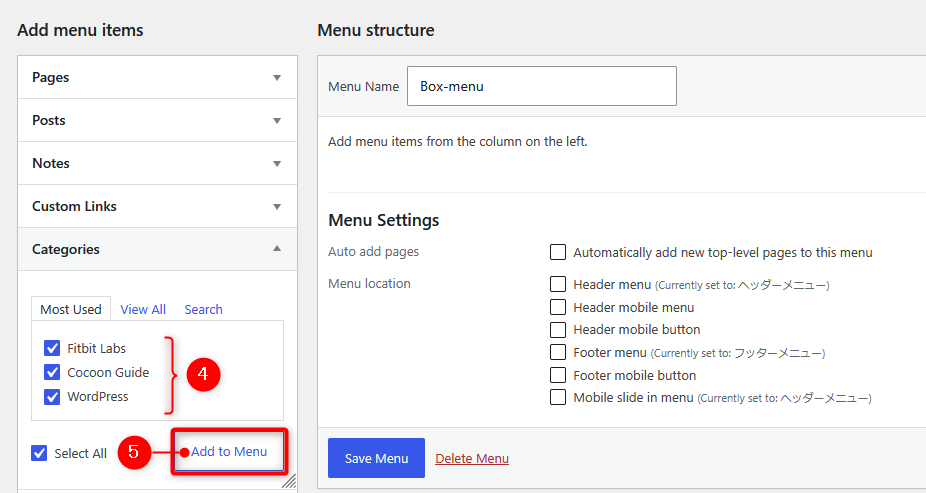
Add Categories: 4 Check the items you want to display in the sidebar from the “Categories” list on the left side of the screen, and 5 click “Add to Menu.”
-
Open Screen Options at the Top of the Screen: Check the boxes for “Link Target,” “CSS Classes,” and “Description.”

Step 2: Adding Stylish Icons and Descriptions
The biggest appeal of Cocoon’s Box Menu is the ability to display icons and subtitles. Open the arrow on the right side of each added menu item to configure the settings.
-
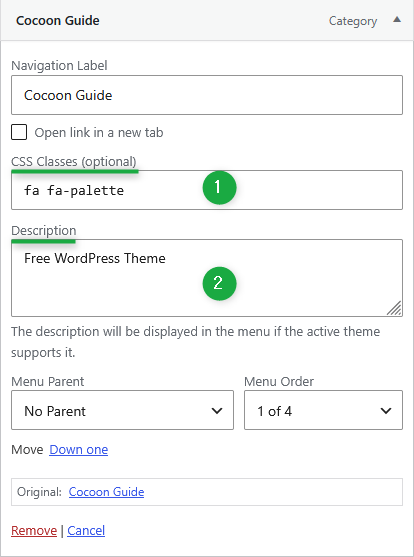
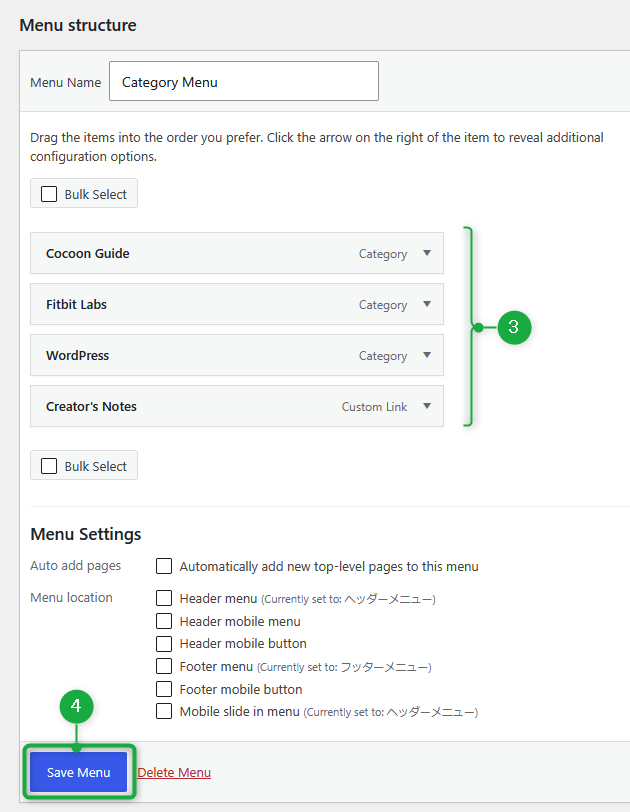
Configure “Menu Formatting”: 1 In the “CSS class” field that appears when you open each item, enter the Font Awesome class name (e.g.,
fa fa-palette). 2 In the “Description” field, enter the subtitle you want to display below the icon (this can be left blank).
-
Enter Icons and Descriptions for Other Categories: In this case, we added three categories. However, for a Box Menu displayed in the sidebar, an even number of items is recommended as a rule from the perspective of balance. 3 If you have fewer categories to display, add fixed pages or custom links to make it an “even number.” Finally, 4 click “Save Menu.”
Step 3: Placing the Widget in the Sidebar with a Widget
Let’s display the created menu in the actual sidebar.
- Open “Appearance” ➔ “Widgets”: Go to the widget settings screen from the management screen.
-
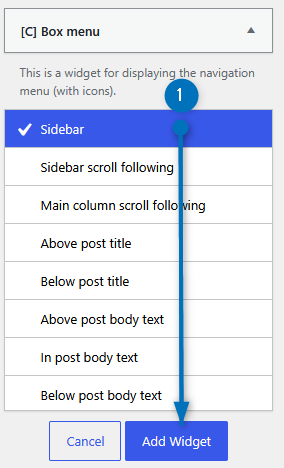
Place the “Box Menu”: 1 Find “[C] Box Menu” from the list of available widgets, select “Sidebar,” and click “Add Widget.”
-
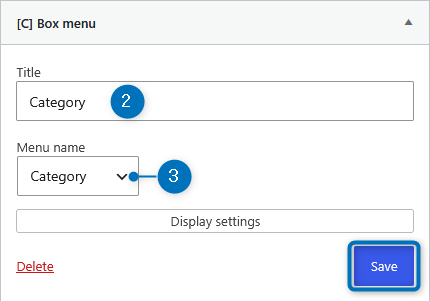
Enter the Title: 2 Enter a title, and 3 select the menu name configured in Step 1. ➔ Finally, click “Save”.
-
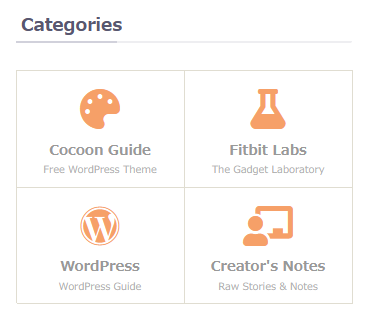
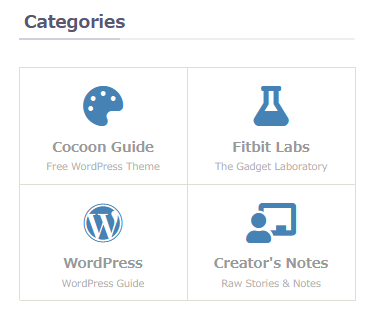
Completion: If it is displayed in the sidebar like this, you have succeeded!
Let’s Customize Icons and Hover Borders
The default gentle orange color is wonderful, but for those who want to match it with their own blog’s theme color, here is a custom CSS snippet to change it precisely.
By simply pasting the following code into your child theme’s “style.css” or “Additional CSS,” the icons and the borders when hovering the mouse will be customized into a beautiful blue style without breaking the text balance!
/* ==========================================================================
   Sidebar: Changing Box Menu Icon & Hover Shadow Colors
   ========================================================================= */

/* Change the icon color in its normal state (e.g., Steel Blue) */
.box-menu-icon {
    color: #4682b4; /* ★ Change color here */
}

/* Borders (shadows) when hovering the mouse */
.nwa .box-menu:hover {
    box-shadow: inset 2px 2px 0 0 #4682b4, 2px 2px 0 0 #4682b4, 2px 0 0 0 #4682b4; /* Match the same color as ★ */
}
Please try it with your favorite color!
In Cocoon, if you add an exclamation mark “!” to the beginning of the widget title, you can check the title on the management screen, but it will be hidden on the site, so please give it a try!

![[Cocoon] A Complete Guide to Setting Up a “Correct Table of Contents” for High Visibility and SEO](https://martto.net/en/wp-content/uploads/2026/07/Table-of-Contents_en.png "[Cocoon] A Complete Guide to Setting Up a “Correct Table of Contents” for High Visibility and SEO")

Comments