In this article, we’ll first look at what Cocoon’s default sitemap can do, then show you how to fully automate the sitemap and customize it to suit your own site.
The sitemap covered here is not an XML sitemap submitted to search engines. It is an HTML sitemap that helps visitors find content within your site.
Create a Sitemap Easily with Cocoon
With Cocoon, you can display a list of content from your site simply by entering the sitemap shortcode [sitemap] on a page.
By default, it can mainly display the following:
- Pages
- Standard posts
- Category lists
When you publish a new post, it is automatically added to the sitemap, so there is no need to manually add links each time you update your site.
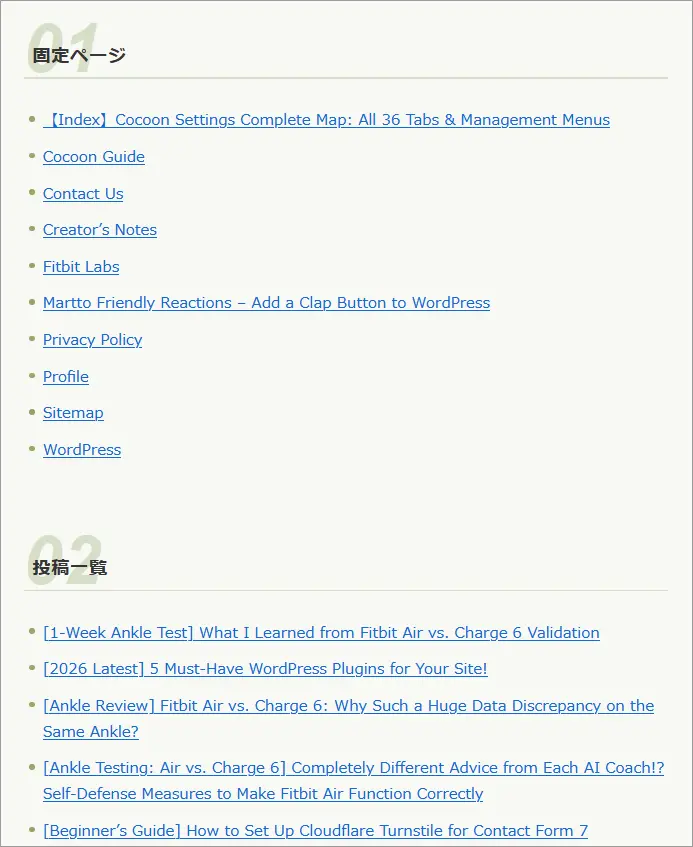
The image above shows a sitemap created with Cocoon’s default feature.
The necessary information is all there, but the post list is ordered from oldest to newest. As the number of articles grows, the list of links also becomes longer, making it increasingly difficult to find the article you are looking for.
If your site uses custom post types in addition to standard posts, you may also want those posts to appear in the sitemap.
Useful Features to Add to Your Sitemap
If you are going to create a page that lists all the content on your site, it is helpful to make it easy for visitors to find what they need and for you to review the structure of your own site.
For example, you can customize the sitemap in the following ways:
- Display custom post types as well as standard posts
- Choose the display order of pages, posts, custom post types, and other content
- Display only the items you need
- Automatically add newly published posts to the sitemap
Once the system is set up, you no longer need to update the sitemap manually every time you publish a new article.
By fully automating the sitemap itself, managing it remains easy even as your site grows.
A Cleaner Design Makes Articles Easier to Find
A sitemap should do more than simply display a long list of links.
Making the sections for pages, standard posts, and custom post types easier to distinguish, or adjusting the spacing between items, can make the page much easier to read.
For example, you can adjust:
- The appearance of each section heading
- The spacing between article titles
- How easy categories are to find
- A multi-column layout on desktop and a single-column layout on smartphones
- Colors and spacing to match the overall design of your site
A sitemap is a page for finding content, so there is no need to make the design overly elaborate.
Prioritizing a layout that makes it easy to see what is located where will make the page much more useful.
How We Customized martto.Creative
On “martto.Creative,” we also previously used Cocoon’s default sitemap.
We now use a sitemap that automatically displays not only standard posts and pages, but also custom post types.
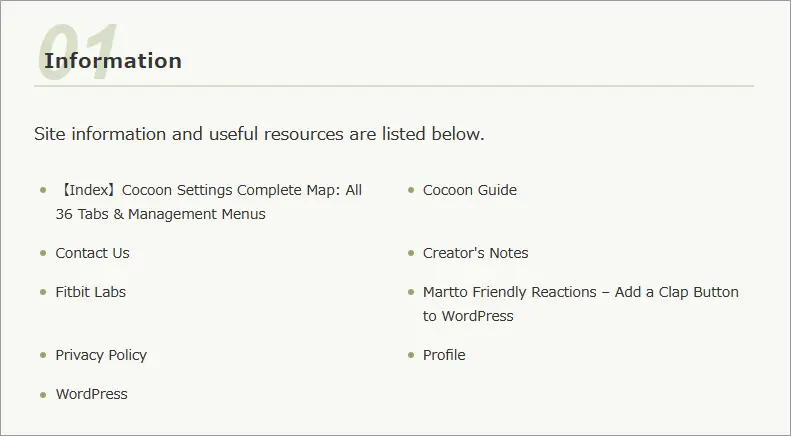
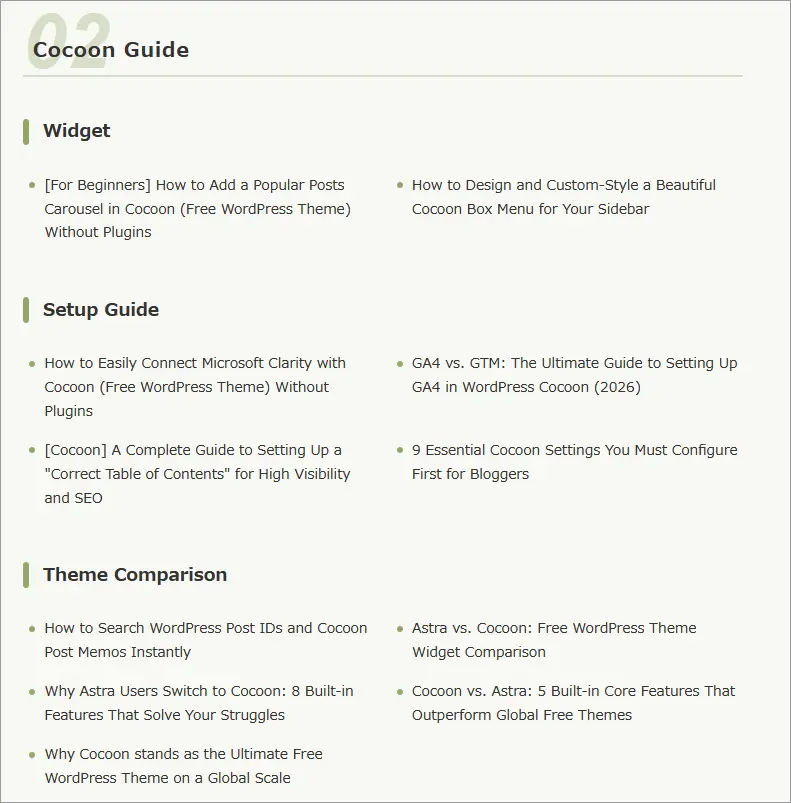
Once the system is set up, publishing an article automatically adds it to the list, so there is no need to update the sitemap manually.
We also choose the order in which items are displayed and use CSS to adjust the appearance, making the overall site structure easier to review than with Cocoon’s default sitemap.
On our sitemap, H2 headings are used for categories and H3 headings for tags. For that reason, we make sure that articles do not span multiple categories or tags.
Of course, this layout is not necessarily the right choice for every site.
You might want to include custom post types, display certain sections first, or create a simpler layout. One of the advantages of customization is that you can choose what your own site needs and build the sitemap accordingly.
Build a Fully Automatic Sitemap with functions.php and CSS
So, how is a sitemap like this created?
It mainly uses the following two elements:
- functions.php: Determines what appears in the sitemap
- CSS: Controls the appearance of the sitemap
In functions.php, you specify the content you want to display in the sitemap, such as pages, standard posts, categories, and custom post types.
CSS is then used to adjust elements such as heading styles, spacing, and layout.
Here is the code currently used on our site as a reference example.
-
// English site: Fully automatic sitemap shortcode supporting standard posts, pages, and custom post types
function custom_en_complete_auto_sitemap() {
    $output = '<div class="custom-sitemap-wrapper">';

    // Block 1: Pages
    $output .= '<h2 class="custom-sitemap-h2">Information</h2>';
    $output .= '<p>Site information and useful resources are listed below.</p>';
    // Exclude the sitemap page currently being displayed
    $current_page_id = get_queried_object_id();
    // Exclude the page set as the front page in WordPress
    $front_page_id = (int) get_option('page_on_front');
    // Page IDs to exclude
    $exclude_page_ids = array_filter(array(
        $current_page_id,
        $front_page_id,
    ));
    // Retrieve all published pages
    $pages = get_pages(array(
        'post_status' => 'publish',
        'sort_column' => 'menu_order,post_title',
        'sort_order'  => 'ASC',
        'exclude'     => $exclude_page_ids,
    ));
    if (!empty($pages)) {
        $output .= '<ul class="custom-sitemap-list">';
        foreach ($pages as $page) {
            $output .= '<li><a href="'
                     . esc_url(get_permalink($page->ID))
                     . '">'
                     . esc_html($page->post_title)
                     . '</a></li>';
        }
        $output .= '</ul>';
    }

    // Block 2: Standard posts
    // Category ➔ Tag ➔ Post
    // Specify the categories to display by slug
    // Slugs are used instead of IDs, so this works even if category IDs differ between sites
    $ordered_category_slugs = array(
        'cocoon-guide',
        'wordpress',
        'fitbit-labs',
    );
    foreach ($ordered_category_slugs as $category_slug) {
        $category = get_category_by_slug($category_slug);
        // Skip the category if it does not exist on the site
        if (!$category) {
            continue;
        }
        // Automatically display the category name as an h2 heading
        $output .= '<h2 class="custom-sitemap-h2">'
                 . esc_html($category->name)
                 . '</h2>';
        // Retrieve all published posts in the category
        $all_posts = get_posts(array(
            'category'       => $category->term_id,
            'posts_per_page' => -1,
            'post_status'    => 'publish',
            'orderby'        => 'date',
            'order'          => 'DESC',
        ));
        // Move to the next category if there are no posts
        if (empty($all_posts)) {
            continue;
        }
        // Retrieve tag IDs from the posts and remove duplicates
        $tag_ids = array();
        foreach ($all_posts as $p) {
            $post_tags = get_the_tags($p->ID);
            if ($post_tags) {
                foreach ($post_tags as $tag) {
                    $tag_ids[] = $tag->term_id;
                }
            }
        }
        $tag_ids = array_unique($tag_ids);
        // If tags exist, group and display posts by tag
        if (!empty($tag_ids)) {
            foreach ($tag_ids as $tag_id) {
                $tag = get_tag($tag_id);
                if (!$tag) {
                    continue;
                }
                // Display the tag name as an h3 heading
                $output .= '<h3 class="custom-sitemap-h3">'
                         . esc_html($tag->name)
                         . '</h3>';
                $output .= '<ul class="custom-sitemap-list">';
                foreach ($all_posts as $p) {
                    if (has_tag($tag_id, $p->ID)) {
                        $output .= '<li><a href="'
                                 . esc_url(get_permalink($p->ID))
                                 . '">'
                                 . esc_html($p->post_title)
                                 . '</a></li>';
                    }
                }
                $output .= '</ul>';
            }
        }
        // Extract posts that do not have tags
        $untagged_posts = array();
        foreach ($all_posts as $p) {
            if (!get_the_tags($p->ID)) {
                $untagged_posts[] = $p;
            }
        }
        // Display untagged posts if any exist
        if (!empty($untagged_posts)) {
            // Display the "Other Articles" heading only if tagged posts also exist
            if (!empty($tag_ids)) {
                $output .= '<h3 class="custom-sitemap-h3">Other Articles</h3>';
            }
            $output .= '<ul class="custom-sitemap-list">';
            foreach ($untagged_posts as $up) {
                $output .= '<li><a href="'
                         . esc_url(get_permalink($up->ID))
                         . '">'
                         . esc_html($up->post_title)
                         . '</a></li>';
            }
            $output .= '</ul>';
        }
    }

    // Block 3: Custom post type "notes"
    // Creator's Notes
    // Process only if the "notes" custom post type exists
    if (post_type_exists('notes')) {
        // Retrieve all published notes posts
        $args = array(
            'post_type'      => 'notes',
            'posts_per_page' => -1,
            'post_status'    => 'publish',
            'orderby'        => 'date',
            'order'          => 'DESC',
        );
        $query = new WP_Query($args);
        if ($query->have_posts()) {
            // h2 heading
            $output .= '<h2 class="custom-sitemap-h2">Creator\'s Notes</h2>';
            $output .= '<ul class="custom-sitemap-list">';
            while ($query->have_posts()) {
                $query->the_post();
                $output .= '<li><a href="'
                         . esc_url(get_permalink())
                         . '">'
                         . esc_html(get_the_title())
                         . '</a></li>';
            }
            $output .= '</ul>';
            // Restore the global post data
            wp_reset_postdata();
        }
    }

    $output .= '</div>';
    return $output;
}
add_shortcode('en_auto_sitemap', 'custom_en_complete_auto_sitemap');
This code was created specifically for the structure of “martto.Creative.”
Custom post type names, in particular, vary from site to site. Therefore, rather than copying the code exactly as shown, you will need to adjust it to match your own site structure.
The same applies to the design.
-
/* Styles for the automatic sitemap */
#main .entry-content .custom-sitemap-wrapper {
    margin-top: 30px;
}

/* H2 headings */
#main .entry-content .custom-sitemap-wrapper h2.custom-sitemap-h2 {
    font-size: 20px;
    color: #333333;
    background: transparent;
    padding: 0 0 8px 0;
    margin: 50px 0 25px 0;
    border: none;
    border-bottom: 2px solid #78909c;
    border-radius: 0;
    display: flex;
    align-items: center;
}
#main .entry-content .custom-sitemap-wrapper h2.custom-sitemap-h2::before {
    content: "\f24d";
    font-family: "Font Awesome 5 Free";
    font-weight: 900;
    color: #333333;
    margin-right: 10px;
    font-size: 18px;
}

/* H3 headings */
#container #content #main .entry-content .custom-sitemap-wrapper h3.custom-sitemap-h3 {
    font-size: 15px;
    color: #333333;
    padding: 6px 12px;
    margin: 30px 0 15px 0;
    border: none;
    border-radius: 4px;
    display: flex;
    align-items: center;
}
#main .entry-content .custom-sitemap-wrapper h3.custom-sitemap-h3::before {
    content: "\f02b";
    font-family: "Font Awesome 5 Free";
    font-weight: 900;
    color: #333333;
    margin-right: 6px;
    font-size: 14px;
}

/* Post and page lists */
#main .entry-content .custom-sitemap-wrapper .custom-sitemap-list {
    display: flex;
    flex-wrap: wrap;
    justify-content: space-between;
    list-style: none;
    padding: 0;
    margin: 0 0 30px 0;
}
#main .entry-content .custom-sitemap-wrapper .custom-sitemap-list li {
    width: 48%;
    margin-bottom: 10px;
    padding-left: 15px;
    position: relative;
    box-sizing: border-box;
    line-height: 1.5;
}
#main .entry-content .custom-sitemap-wrapper .custom-sitemap-list li::before {
    content: "›";
    font-size: 16px;
    font-weight: bold;
    position: absolute;
    left: 0;
    top: 0;
    line-height: 1.5;
    color: #78909c;
}
#main .entry-content .custom-sitemap-wrapper .custom-sitemap-list li a {
    text-decoration: none;
    color: #333333;
    font-size: 14px;
    display: block;
}
#main .entry-content .custom-sitemap-wrapper .custom-sitemap-list li a:hover {
    color: #000000;
    text-decoration: underline;
}

/* One column on smartphones */
@media screen and (max-width: 480px) {
    #main .entry-content .custom-sitemap-wrapper .custom-sitemap-list li {
        width: 100%;
    }
}
The required CSS rules may vary depending on the theme you use and the CSS already applied to your site.
You Don’t Have to Write the Difficult Code Yourself
At this point, you may be thinking:
“I don’t understand functions.php.”
“I don’t even know where to find my custom post type name.”
“Writing CSS myself seems impossible.”
But you do not need to learn how to write all of this difficult code yourself.
Today, you can give AI your existing code and an idea of how you want your sitemap to look, then ask it to rewrite the code to suit your own site.
What matters more than being able to write the program yourself is being able to tell AI what you want to do.
In the next article, we’ll use this sitemap as an example and cover:
- How to show your code to AI
- What information to provide when asking AI to adapt it to your site
- How to use screenshots when something is difficult to explain in words
- How to use a hand-drawn mockup to show AI the result you want
We’ll explain how WordPress beginners can ask AI for help without getting lost.
![[For Beginners] How to Add a Popular Posts Carousel in Cocoon (Free WordPress Theme) Without Plugins](https://martto.net/en/wp-content/uploads/2026/07/carousel_en.png "[For Beginners] How to Add a Popular Posts Carousel in Cocoon (Free WordPress Theme) Without Plugins")
Comments