
[Admin Search] Magic Code to Instantly Search Post Memos and IDs
The WordPress theme Cocoon comes standard with a highly useful “Post Memo” section right on the editing screen of each article, perfect for keeping your own private notes and reminders.

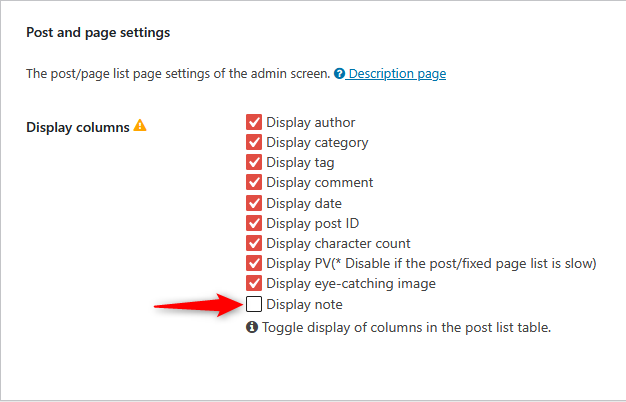
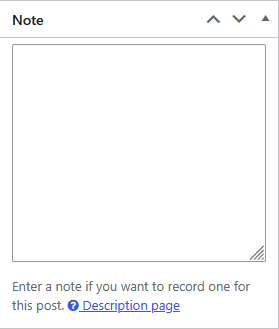
However, as your post count grows, this memo section hits a major bottleneck: you start wondering, “Which post did I write that note in?” Unfortunately, typing a specific string into the standard [Search Posts] box will not include the memo text in the search targets.
Leaving it as-is severely limits the utility of this excellent memo feature. Therefore, we present a custom code snippet that works two ways:
1 Type a number into the search box to instantly hit the exact “Post ID.”
2 Type text (English or any characters) to scan standard targets plus the contents of the “Post Memo” simultaneously!
Pattern A: [Cocoon Essential] Simultaneous Search Code for Post IDs & Memos
If you are using the Cocoon theme, simply paste the following code at the very end of your child theme’s functions.php file.
Please note: This specific meta key the_page_memo used in the snippet is a built-in feature of the Cocoon theme. While this code has been fully verified in the administrator’s environment, please use it at your own risk.
-
/**
 * [Cocoon Exclusive] Admin Post Search Customization
 * Numeric input: Targets Post ID exclusively with an exact match.
 * Text input: Scans standard Title/Content plus the "Post Memo (the_page_memo)" field.
 */
function extend_admin_search_to_id_and_memo_exclusive( $search, $wp_query ) {
    global $wpdb;
    // Exclude if not performing a main query search in the admin panel
    if ( ! is_admin() || ! $wp_query->is_main_query() || ! $wp_query->is_search() ) {
        return $search;
    }
    // Exclude if there is no search keyword
    if ( ! isset( $wp_query->query_vars['s'] ) || $wp_query->query_vars['s'] === '' ) {
        return $search;
    }
    // Apply exclusively to the post listing (edit) screen for "post" post types
    $screen = get_current_screen();
    if ( $screen && $screen->base === 'edit' && $screen->post_type === 'post' ) {
        $term = $wp_query->query_vars['s'];
        // 1. If the entered string is purely numeric
        if ( is_numeric( $term ) ) {
            // Halt standard search (title/content) and search strictly by Post ID exact match
            $search = " AND ({$wpdb->posts}.ID = '" . esc_sql( $term ) . "')";
        }
        // 2. If the entered string is text (characters)
        else {
            $keyword = $wpdb->esc_like( $term );
            // Securely append the "Post Memo" condition to the end of the search query (supports partial match)
            $search_add = " OR EXISTS (
                SELECT 1 FROM {$wpdb->postmeta}
                WHERE {$wpdb->postmeta}.post_id = {$wpdb->posts}.ID
                AND {$wpdb->postmeta}.meta_key = 'the_page_memo'
                AND {$wpdb->postmeta}.meta_value LIKE '%{$keyword}%'
            )";
            if ( ! empty( $search ) ) {
                $search = preg_replace( '/\)\s*$/', $search_add . ')', $search );
            }
        }
    }
    return $search;
}
add_filter( 'posts_search', 'extend_admin_search_to_id_and_memo_exclusive', 10, 2 );
Pattern B: [For Other Themes] Simple Post ID Search Code
If you are using another theme that does not feature a built-in memo section, use this lightweight code to include Post ID exact matching in your standard admin search.
-
/**
 * Customize Admin Post Search to Include "Post ID"
 * (If a numeric value is entered, searches strictly by exact match of the ID)
 */
function extend_admin_search_to_post_id_exclusive( $search, $wp_query ) {
    global $wpdb;
    // Exclude if not performing a main query search in the admin panel
    if ( ! is_admin() || ! $wp_query->is_main_query() || ! $wp_query->is_search() ) {
        return $search;
    }
    // Exclude if there is no search keyword
    if ( ! isset( $wp_query->query_vars['s'] ) || $wp_query->query_vars['s'] === '' ) {
        return $search;
    }
    // Apply exclusively to the post listing (edit) screen for "post" post types
    $screen = get_current_screen();
    if ( $screen && $screen->base === 'edit' && $screen->post_type === 'post' ) {
        $term = $wp_query->query_vars['s'];
        // If the entered string is purely numeric
        if ( is_numeric( $term ) ) {
            // Completely override standard title/content queries to strictly look for exact ID match
            $search = " AND ({$wpdb->posts}.ID = '" . esc_sql( $term ) . "')";
        }
    }
    return $search;
}
add_filter( 'posts_search', 'extend_admin_search_to_post_id_exclusive', 10, 2 );
A Quick Trick to Find a Hidden “Post ID” Without Clicking
When managing a WordPress blog, you often encounter situations where you need to exclude a specific article from a featured widget or remove it from a related posts block.
For these tasks, the unique number assigned to each article—the “Post ID”—is absolutely mandatory.
However, by default WordPress specifications, this Post ID is completely hidden from the standard admin post listing screen.
You might wonder, “Then how can users on themes other than Cocoon look up their Post IDs easily?”
Actually, revealing the hidden ID is incredibly straightforward.
The Method: Just Hover Your Mouse Pointer Over the Edit Button
The fastest and most highly recommended trick is simply hovering your mouse pointer (mouse arrow) over the “Edit” text of the target post on the listing screen.

If you look closely at the tail end of that URL, you will spot something like post=13137. This allows you to verify the ID instantly without ever having to wait for the editing page to open!
![[Cocoon] A Complete Guide to Setting Up a “Correct Table of Contents” for High Visibility and SEO](https://martto.net/en/wp-content/uploads/2026/07/Table-of-Contents_en.png "[Cocoon] A Complete Guide to Setting Up a “Correct Table of Contents” for High Visibility and SEO")
Comments