
[Admin Search] Instantly Search Post Memos and IDs
The WordPress theme Cocoon includes a useful “Post Memo” section on each post editing screen, making it easy to leave private notes and reminders for yourself.

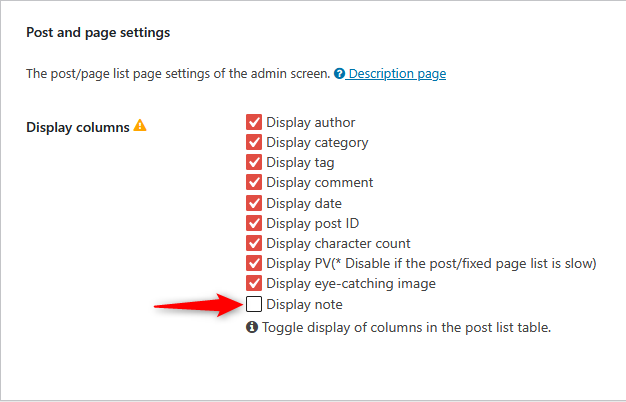
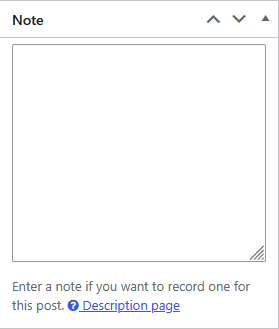
However, as the number of posts grows, this memo feature has one major weakness: you may find yourself wondering, “Which post did I write that note in?” Unfortunately, entering text from a memo into the standard [Search Posts] box does not include the memo field in the search.
That limits how useful the memo feature can be, so the code below adds two types of search:
1 Enter a number to search for an exact “Post ID.”
2 Enter text to search the standard fields together with the contents of the “Post Memo” field.
$wpdb->prepare() method. Post ID searches, Post Memo searches, and standard text searches have all been tested successfully in the administrator’s environment.Pattern A: [For Cocoon Users] Search Post IDs and Post Memos Together
If you are using the Cocoon theme, paste the following code at the very end of your child theme’s functions.php file.
Please note: The the_page_memo meta key used in this snippet is a built-in feature of the Cocoon theme. This code has been tested in the administrator’s environment, but please use it at your own risk.
-
/**
 * [Cocoon Only] Customize Admin Post Search
 * Numeric input: Searches only for an exact Post ID match.
 * Text input: Searches the standard title/content fields plus the "Post Memo (the_page_memo)" field.
 */
function extend_admin_search_to_id_and_memo_exclusive( $search, $wp_query ) {
    global $wpdb;

    // Exclude anything other than a main query search in the admin panel
    if ( ! is_admin() || ! $wp_query->is_main_query() || ! $wp_query->is_search() ) {
        return $search;
    }

    // Exclude searches with no keyword
    if (
        ! isset( $wp_query->query_vars['s'] )
        || '' === trim( (string) $wp_query->query_vars['s'] )
    ) {
        return $search;
    }

    // Apply only to the post listing (edit) screen for standard posts
    $screen = get_current_screen();

    if (
        ! $screen
        || 'edit' !== $screen->base
        || 'post' !== $screen->post_type
    ) {
        return $search;
    }

    $term = trim( (string) $wp_query->query_vars['s'] );

    // 1. Numeric input: exact Post ID match
    if ( ctype_digit( $term ) ) {
        return $wpdb->prepare(
            " AND ({$wpdb->posts}.ID = %d)",
            (int) $term
        );
    }

    // 2. Text input: add the Post Memo field to the standard search
    $like = '%' . $wpdb->esc_like( $term ) . '%';

    $memo_search = $wpdb->prepare(
        " OR EXISTS (
            SELECT 1
            FROM {$wpdb->postmeta}
            WHERE {$wpdb->postmeta}.post_id = {$wpdb->posts}.ID
            AND {$wpdb->postmeta}.meta_key = %s
            AND {$wpdb->postmeta}.meta_value LIKE %s
        )",
        'the_page_memo',
        $like
    );

    // Add the Post Memo condition to the standard WordPress search
    if ( ! empty( $search ) ) {
        $search = preg_replace(
            '/\)\s*$/',
            $memo_search . ')',
            $search,
            1
        );
    }

    return $search;
}
add_filter( 'posts_search', 'extend_admin_search_to_id_and_memo_exclusive', 10, 2 );
Pattern B: [For Other Themes] Simple Post ID Search Code
If you are using a theme without a built-in memo field, use the following code to search for an exact Post ID from the standard admin search box.
-
/**
 * Customize Admin Post Search to Include Post IDs
 * Numeric input: Searches only for an exact Post ID match.
 */
function extend_admin_search_to_post_id_exclusive( $search, $wp_query ) {
    global $wpdb;

    // Exclude anything other than a main query search in the admin panel
    if ( ! is_admin() || ! $wp_query->is_main_query() || ! $wp_query->is_search() ) {
        return $search;
    }

    // Exclude searches with no keyword
    if (
        ! isset( $wp_query->query_vars['s'] )
        || '' === trim( (string) $wp_query->query_vars['s'] )
    ) {
        return $search;
    }

    // Apply only to the post listing (edit) screen for standard posts
    $screen = get_current_screen();

    if (
        ! $screen
        || 'edit' !== $screen->base
        || 'post' !== $screen->post_type
    ) {
        return $search;
    }

    $term = trim( (string) $wp_query->query_vars['s'] );

    // Numeric input: exact Post ID match
    if ( ctype_digit( $term ) ) {
        return $wpdb->prepare(
            " AND ({$wpdb->posts}.ID = %d)",
            (int) $term
        );
    }

    return $search;
}
add_filter( 'posts_search', 'extend_admin_search_to_post_id_exclusive', 10, 2 );
A Quick Way to Find a Hidden “Post ID” Without Clicking
When managing a WordPress blog, you may need to exclude a specific post from a featured-post widget or remove it from a related-posts block.
In situations like these, you need the unique number assigned to each post: the Post ID.
However, WordPress does not display Post IDs in the standard post list by default.
You may be wondering, “How can users of themes other than Cocoon find a Post ID easily?”
Fortunately, there is a very simple way to check it.
Method: Hover Over the Edit Link
The quickest method is to hover your mouse pointer over the “Edit” link for the post whose ID you want to check.

Look closely at the end of the URL and you will see something like post=13137. This lets you check the Post ID instantly without opening the editing screen.

![[Cocoon] A Complete Guide to Setting Up a “Correct Table of Contents” for High Visibility and SEO](https://martto.net/en/wp-content/uploads/2026/07/Table-of-Contents_en.png "[Cocoon] A Complete Guide to Setting Up a “Correct Table of Contents” for High Visibility and SEO")
Comments